1 click
PER ALIGNMENT
The align and distribute buttons every 2D designer expects, built into Blender's 3D Viewport. Select your objects, press Align, and handles appear beside the active object on X, Y and Z. Hover one to see exactly where everything will land. Click, and it's done.
 // simple-align.rail
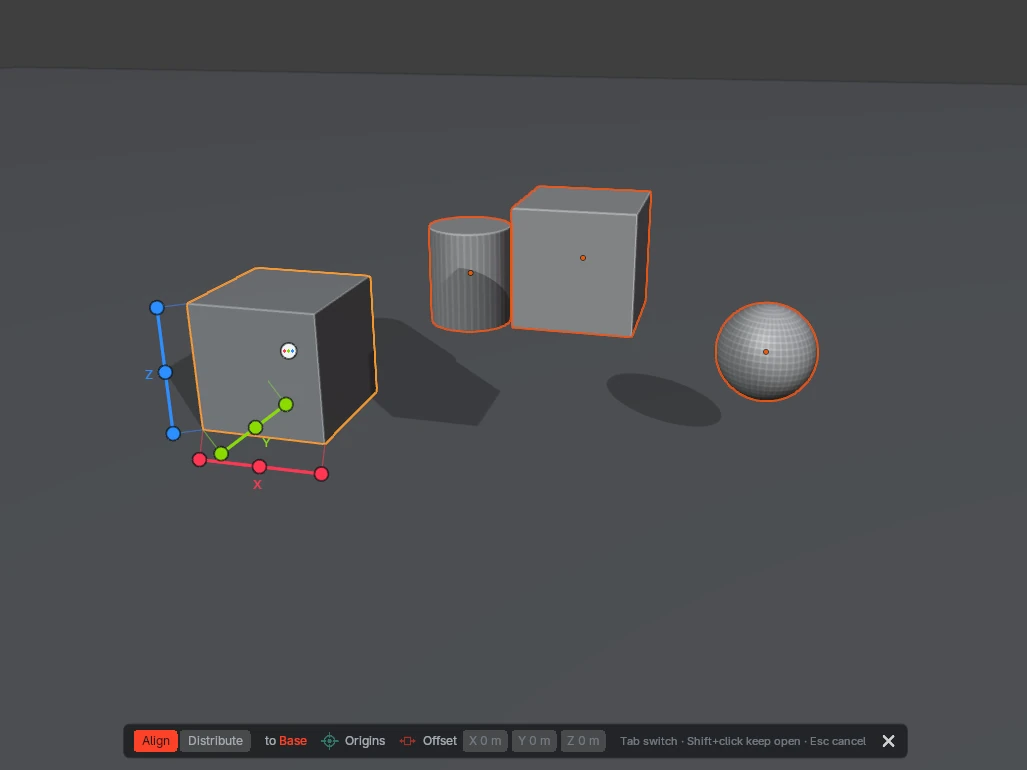
// press align · shift+click z min: everything drops to the floor · click y min: front faces line up
// press align · tab · pick gaps · click the x rail: equal space between every object
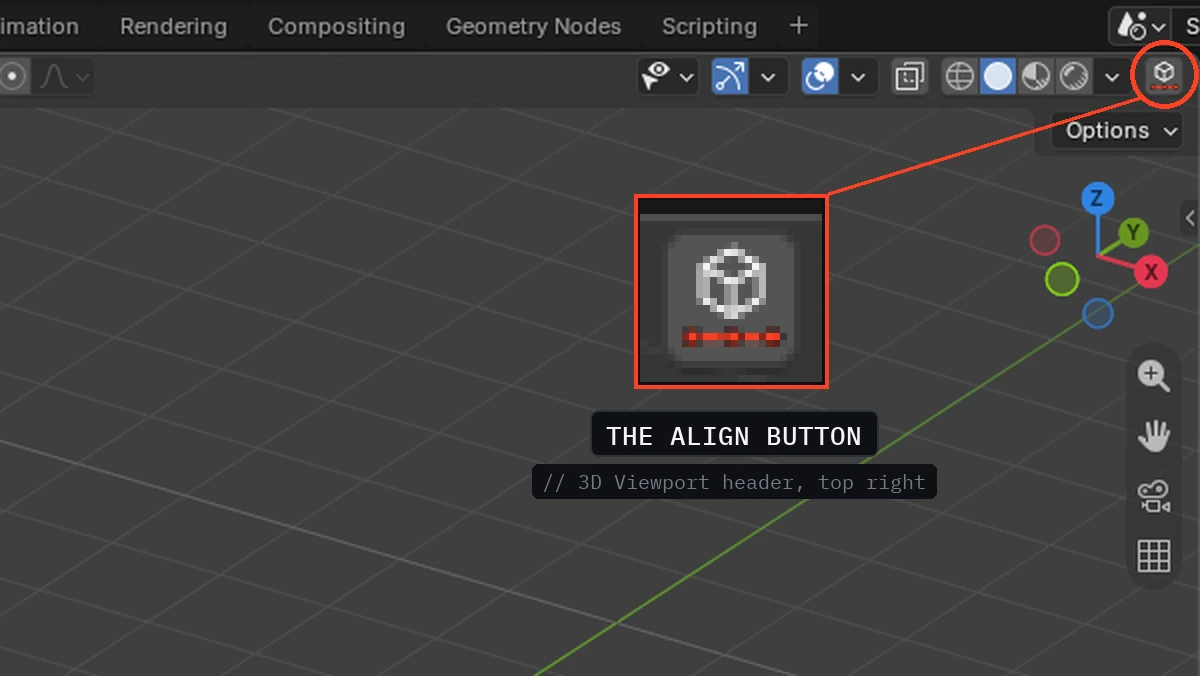
Simple Align adds an Align button to the top of every 3D Viewport, at the right end of the header. Select your objects, click it, and the align handles appear. Prefer the keyboard? Assign your own shortcut in Preferences; it ships unassigned so it never clashes with yours.
Blender can snap, move and transform almost anything, but it has never had a first-class "line these up" or "space these evenly" button. Simple Align puts those controls in the viewport, on the object you're aligning to.
Version 2.0 drops the old working-view dropdown and button grids. Instead, three dimension rails appear beside the active object, one per axis, colored like Blender's own (X red, Y green, Z blue). Each rail has a stop for min, center and max. You read the result off the scene, not off a panel.
// one mode, three rails, no math
Box- or Shift-select the objects you want to arrange. The last one you select becomes the active object, and everything else aligns to it.
Click the Align button at the right end of the 3D Viewport header, use Align in Viewport in the sidebar, or press a shortcut you assign. Rails appear beside the active object.
Hover any stop and the preview shows the result. Click to apply and the mode closes, as one undo step. Esc, right-click or a click on empty space cancels without moving anything.
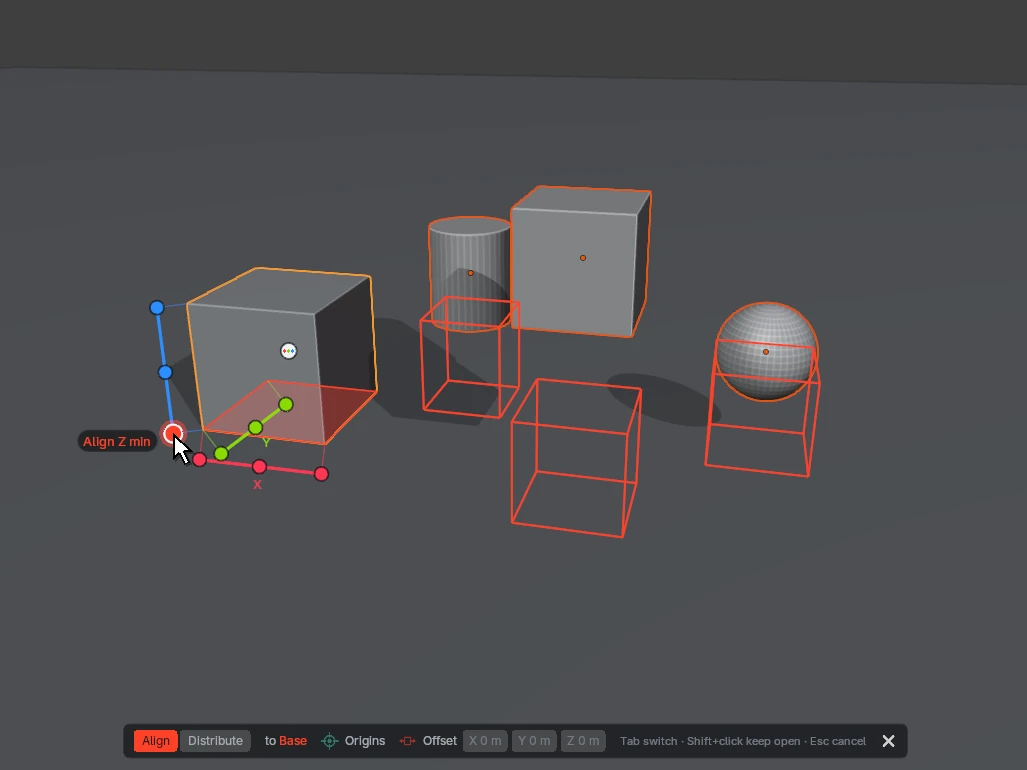
Each rail sits on the edge of the reference object that faces you, like a dimension line on a drawing. The stops are min, center and max along that axis. The hub at the center centers everything on X, Y and Z at once. Orbit and the rails follow the visible edges.
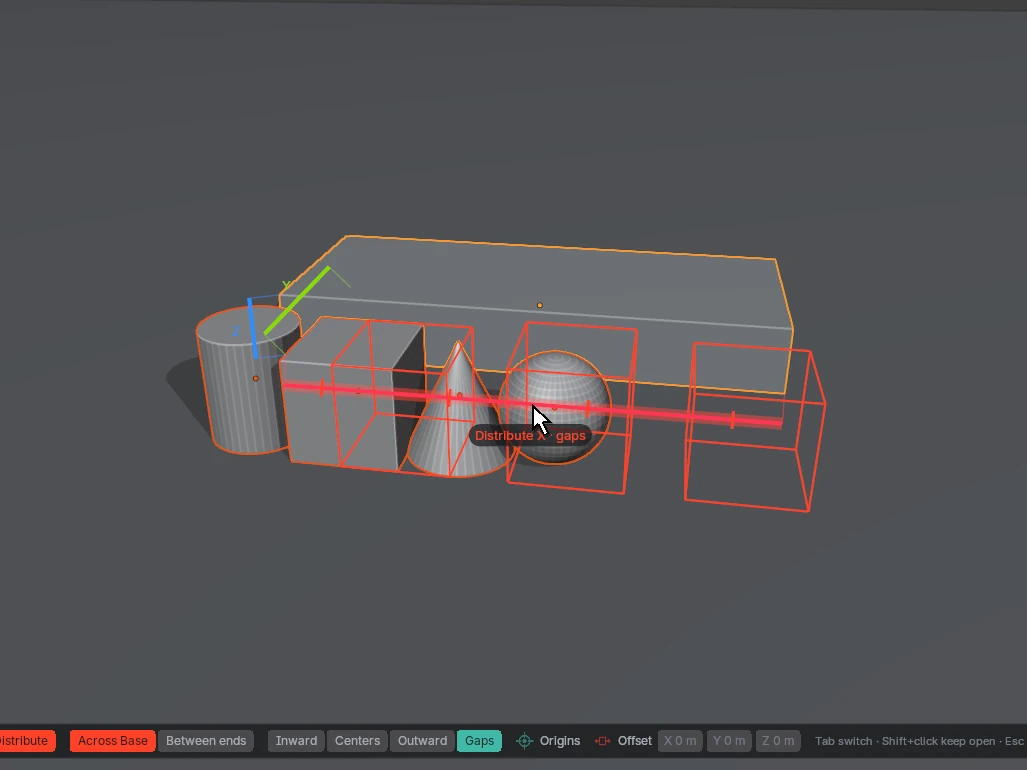
Press Tab and each rail becomes one target. Hover it and tick marks show where each object's center will land, with the same orange preview. Pick Inward, Centers, Outward or the new Gaps method, which leaves equal empty space between objects of different sizes.
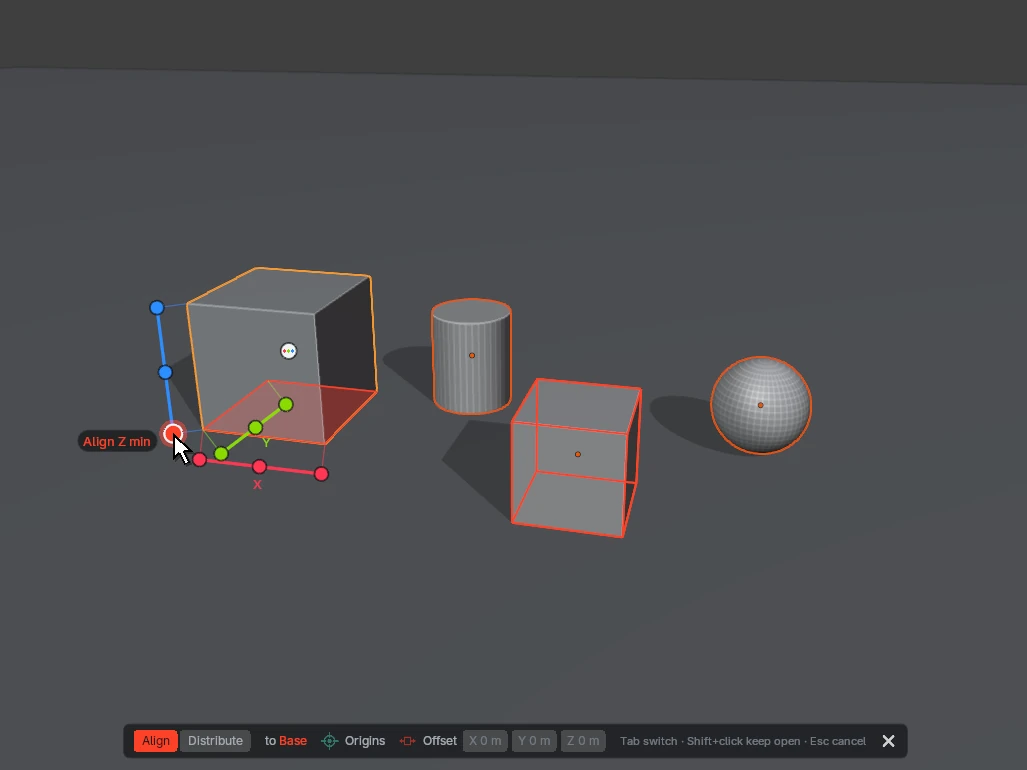
Shift+click a dot and the objects move while the mode stays open, so you can align Z, then Y, then X without starting over. A strip along the bottom of the viewport holds the options: Align or Distribute, the range and method, Origins, and per-axis Offsets you can drag like a Blender number field.
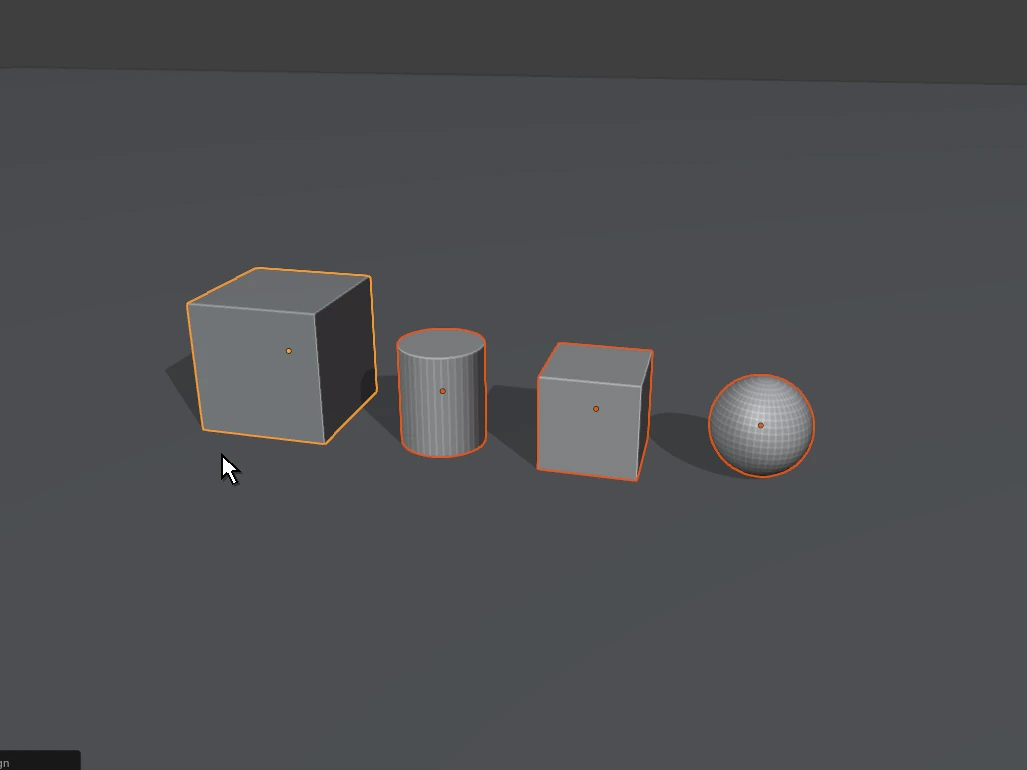
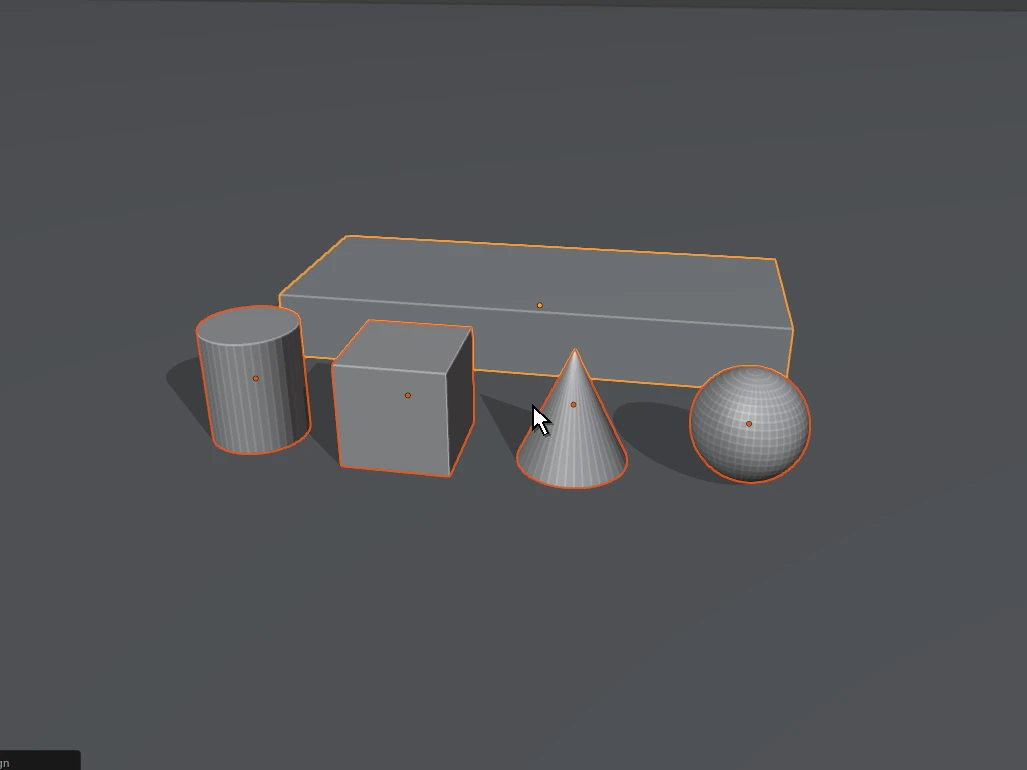
Simple Align does one job: putting objects exactly where they belong relative to each other.
Nothing moves until you click. Hover any handle and orange outlines show the final position of every object.
Align by the visible size of each object, or switch on Origins to use their pivots. The reference object always uses its bounding box.
Grow or shrink the reference object's box per axis, so objects land with a margin or an overlap instead of flush.
Children of rotated or scaled parents land in the right place. Select a parent and its child and the child isn't moved twice.
Every click is one undo step. The Adjust Last Operation panel (F9) lets you change the action, range or method afterward.
No scene clutter and no dependencies. The shortcut ships unassigned so it never clashes with yours.
Yes, it's free. It isn't on Superhive or Gumroad: download the zip from cw1.me/simple-align, the same folder as the manual. Version 2.0 is currently in beta.
The active one: the object you selected last. It never moves when you align to it.
Moves happen along the world X, Y and Z axes. Objects keep their own rotation and scale.
The sidebar button grids and the Top/Front/Right dropdown are gone; everything happens in the viewport now. Remove 1.x in Preferences before installing 2.0, which is a Blender extension for 4.5 and later.
A rail that points straight at you can't be clicked, so it hides. In Top view the Z rail goes away; orbit a little and it returns.
Simple Align is free. It runs entirely inside Blender: no account, no network, nothing added to your scene.
Free doesn't mean unsupported. Simple Align comes from the maker of KIT OPS, backed by first-class support for Blender artists since 2019 and an active Discord where a human replies.
Select, press Align, click. Simple Align is free, small, and built for the way Blender artists already work.