
SIMPLE N-PANEL Add-on for Blender
Author: Chipp Walters
Blender Minimum Version: 4.2.0
Category: User Interface
Doc URL: http://cw1.me/simple-n-panel-docs
The new addon by Chipp Walters, Simple N panel, is the answer to a frustration that I have had about Blender for a long time. This makes a crowded N panel usable. Amazing!
– Frank Maturi
Update: 7/6/2026 v1.1.21 Menu and tab switching now act on the viewport you clicked in (multi-viewport fix), tab detection finds add-ons that use shared base panels, and settings import now reports exactly what was imported or skipped.
Update: 10/31/2025 v1.1.18 Added Shift+click on Heart button to show/hide N-Panel
Overview
Tired of scrolling through dozens of N-Panel tabs in Blender?
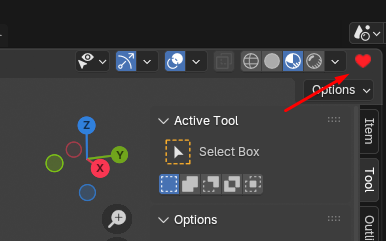
Simple N-Panel puts every N-Panel tab—built-in or from add-ons—into a single, fast, searchable menu. Click the ♥ heart icon in the 3D Viewport header, pick your add-on, and instantly jump to its tab! No more endless scrolling, tiny labels, or tab clutter.
Features
-
Unified N-Panel Menu: Quickly access any N-Panel tab from a pop-up menu.
-
Reorderable List: Customize the order of add-ons in the menu.
-
Show/Hide Add-ons: Choose which tabs appear in the menu.
-
Fast Access: Press Shift + ` (tilde) in the 3D View to call the menu instantly.
-
Custom Icon: Easy-to-spot ♥ icon in the 3D Viewport header.
-
Preferences UI: Edit, reorder, or remove panels from the menu via Add-on Preferences.
-
Compatible with Built-in and Add-on Tabs: Works with any N-Panel tab that uses Blender’s standard system.
-
Blender 4.2+ Required: Uses features and APIs introduced in Blender 4.2.
-
Exports and Imports Settings: Intelligently resolves any conflicts.
Installation
We recommend you drag drop the zip file onto the Blender viewport to install. Or else:
-
Download the add-on files.
-
In Blender, go to Edit > Preferences > Add-ons.
-
Click Install… and select the ZIP or folder.
-
Enable SIMPLE N-PANEL in the add-on list.
-
(Optional) Click the Preferences button for configuration options.
How to Use
1. Open the Simple N-Panel Menu
-
Click the ♥ Heart Icon in the 3D Viewport header.
-
Or, press Shift + ` (tilde) in the 3D Viewport.
2. Jump to Any Tab
-
The pop-up menu lists all N-Panel tabs (add-ons and built-in).
-
Click an entry to instantly activate that tab in the N-Panel.
Prefs

- Documentation
- Refresh Panel List: Keeps existing order and custom labels. Removes addons no longer used. Adds newly enabled addons at bottom of list.
- Reset Panel List: Clears all settings and re-populates the panel list from scratch.
- Exports settings to JSON file
- Imports settings from previously saved JSON file
- Turn on/off visibility of addon in menu.
- Copy tab label to custom label field.
- Custom label field for customizing an addon’s name.
- The name of the addon as seen in the Add-ons list.
- Move to top, Move Up, Move Down
- Delete addon from menu entirely. (Does not delete or turn off addon)
Shortcuts
- Shift + ` (tilde) in the 3D Viewport: Opens the Simple N-Panel menu. You can change this in the Preferences > Key Map area.
Tips
-
If you install a new add-on with an N-Panel tab, hit Refresh Panel List in preferences to add it to your menu.
-
Remember to export your settings as a backup — you can re-import them on any machine.
-
If a tab doesn’t appear or has moved, refreshing the list usually solves it.
-
You can disable certain add-ons from appearing in the menu via Preferences.
Troubleshooting
-
Menu Not Showing Up?
-
Ensure you are using Blender 4.2 or later.
-
Make sure the add-on is enabled and preferences are saved.
-
Try refreshing the addon in Prefs
-
-
Shift + ` Shortcut Doesn’t Work?
- Another add-on might be using this shortcut. You can manually re-assign it in Blender’s keymap preferences.
-
Tab Switch Fails?
- Some third-party tab managers can interfere. Try refreshing the panel list or disabling conflicting add-ons.
-
Missing Icon?
-
The add-on looks for a
custom_icon.pngin itsiconsfolder. If it is missing, it shows a fallback icon.
-
The add-on looks for a
-
Error first time using the menu, but works every time afterwards
- Some users have reported this and it is probably a timing issue. Blender is trying to open the N-panel and then select a tab and the panel is not fully opened when trying to select the tab. May happen on slower machines. To fix, just make sure the N-panel is open on startup (save your startup file with it open) OR manually open the N-panel (‘n’ key) the first time.
Uninstallation
-
Go to Edit > Preferences > Add-ons.
-
Disable SIMPLE N-PANEL.
-
Click Remove to uninstall.