PDF Daisy — User Manual
©2026 Chipp Walters, Altuit Inc.

PDF Daisy is a privacy-first, offline desktop PDF toolkit for viewing, annotating, signing, recognizing text in, and organizing PDF documents — entirely on your own machine. Nothing you open is ever uploaded, no account is required, and the app makes no network requests.
- Version: 1.0.21
- Platforms: Windows (desktop)
- Default window: 1400 × 900
Table of contents
- Getting started
- The interface
- Opening documents & recent files
- Working with tabs
- Viewing & navigation
- Slideshow / presentation mode
- Annotations
- Redaction
- Signature library & stamping
- Find in document
- OCR — recognize text in scans
- Page operations
- The More menu — images & raster export
- Saving — the sidecar model
- Printing
- Preferences & theme
- Status bar
- About, logs & diagnostics
- Keyboard shortcuts
- Privacy & offline behavior
Getting started
When you launch PDF Daisy with no document open, you see the Welcome screen:
- Open File — opens a file picker.
- Recent files — your last 10 opened files; click any to reopen it.
- Drag & drop — drop one or more PDFs from your file manager onto the window to open them.
- Click outside the welcome card (or open a file) to dismiss it.
You can also open PDF Daisy by double-clicking a .pdf file in Windows Explorer if the app is set as the file handler — it launches and opens that file directly.
The interface
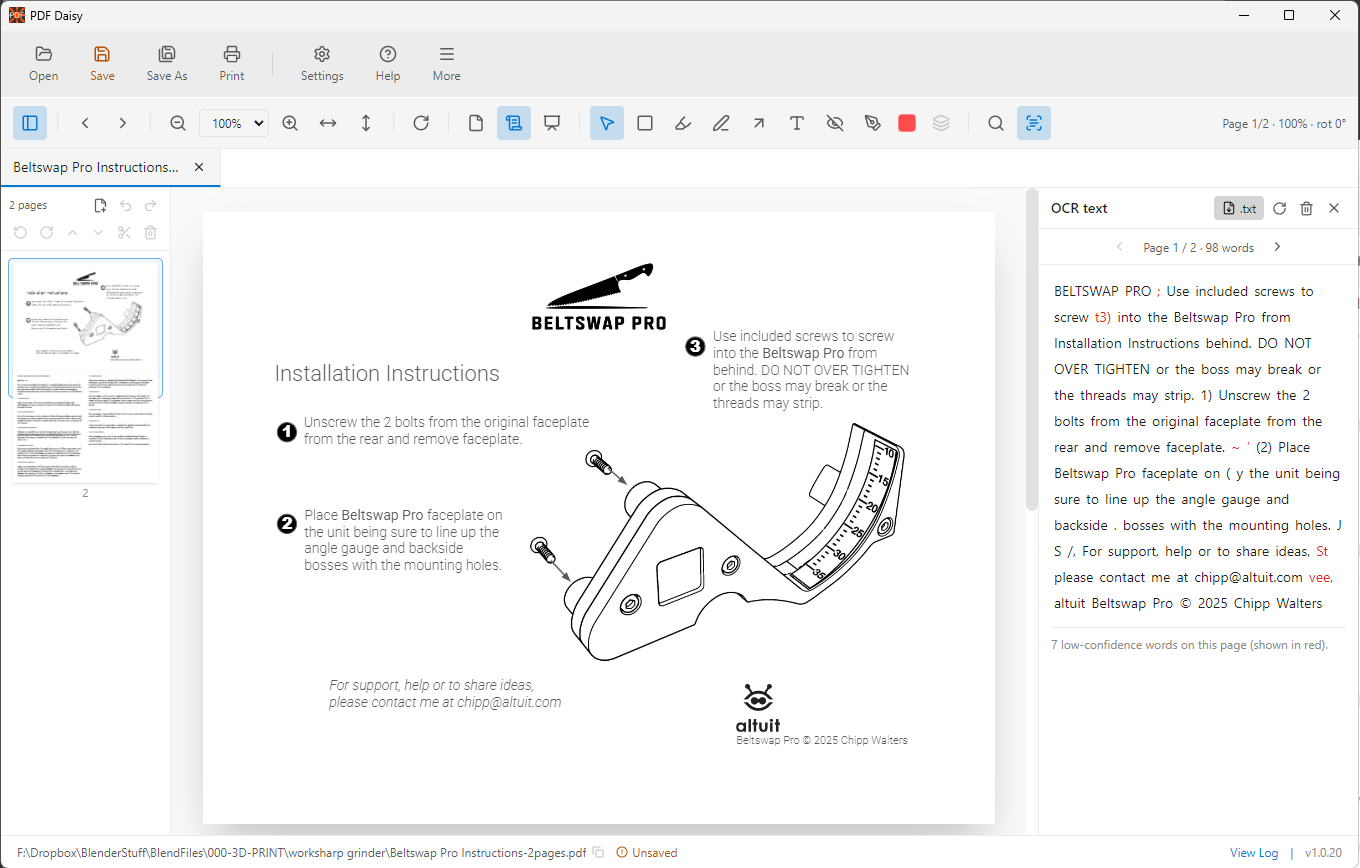
From top to bottom, the window is laid out as:
| Area | What it contains |
|---|---|
| Top toolbar | Open, Save, Save As, Print, Settings (preferences), Help (About), and More (the overflow menu — image export/import and image-only PDF) |
| Tab bar | One tab per open document (appears once a file is open) |
| View toolbar | Thumbnail toggle, page navigation, zoom, fit, rotate-view, view mode + slideshow, annotation tools (incl. Redact) + color picker, flatten, find, OCR |
| Pages sidebar | Page thumbnails + the page-operations toolbar (left side) |
| Document area | The current page(s); drag PDFs here to open new tabs |
| OCR sidebar | (Right side, when OCR is run/open) recognized text by page |
| Status bar | File path (click to copy), unsaved indicator, View Log, version |
The interface uses a themeable color system — Light by default; Dark and “follow System” are available in Preferences.
The More menu (top toolbar)
The More button on the top toolbar (just right of Help) is the single overflow menu for the image / raster actions:
- Export page as PNG/JPG… — save the current page, or every page, as image files.
- Export all images… — save every image embedded inside the PDF to a folder.
- Import image folder as PDF… — build a new PDF from a folder of images, one per page.
- Export as image-only PDF… — rasterize every page into an image-only PDF (this is what makes redactions permanent).
All four are covered in The More menu — images & raster export.
Save As, Print, and About all live on the top toolbar directly. Flatten has its own button in the view toolbar (the stack icon) next to the annotation tools.
Opening documents & recent files
- Open (top toolbar) — pick a PDF from disk.
- Drag and drop — drag one or more PDF files from your file manager onto the document area. A “Drop PDF to open” overlay appears; release to open them. Dropping multiple PDFs opens each in its own tab. (Non-PDF files are ignored.)
- Right-click the Open button — pops up the Recent files menu. Pick a recent file, or choose Clear recent files.
- Files you open are added to the recent list automatically (up to 10).
- Opening a file that is already open simply switches to its existing tab rather than opening a duplicate.
When you reopen a PDF you’ve previously annotated or OCR’d, PDF Daisy automatically restores those layers from the document’s sidecar file (see Saving — the sidecar model). If the PDF was modified outside PDF Daisy since the sidecar was written, you’ll get an “Outdated PDF Daisy data” warning and the layers are ignored.
Working with tabs
PDF Daisy is multi-document — each open PDF gets its own tab in the tab bar.
- Click a tab to make it active.
- Click the ✕ on a tab (or middle-click the tab) to close it.
- A dot on a tab marks unsaved changes in that document (the Save button on the toolbar also turns yellow when there are unsaved changes).
- Each tab keeps its own view state (page, zoom, rotation, view mode) and its own annotations + OCR.
Viewing & navigation
The view toolbar (above the document) provides:
- Toggle thumbnails — show/hide the left Pages sidebar.
- Previous / Next page — step through pages.
- Zoom out / Zoom level / Zoom in — pick a preset (25%–200%) or zoom incrementally. The current custom zoom is added to the list when it isn’t a preset.
- Ctrl + mouse wheel — zoom about the cursor. Hold Ctrl (or ⌘) and scroll the wheel to zoom in (scroll up) and out (scroll down), centered on wherever your pointer is — the point under the cursor stays put. Works in both single-page and continuous views, and with trackpad pinch. A plain wheel (no modifier) scrolls as usual.
- Fit to width — scale the page to the window width.
- Fit to height — scale the whole page to the window height.
- Rotate view 90° clockwise — rotates the on-screen view only. This is a temporary viewing rotation; it is not saved into the file. (To rotate pages permanently, use the page-operations Rotate in the Pages sidebar — see Page operations.)
- Single page vs Continuous scroll view modes.
- Slideshow — full-screen presentation mode (see below).
Thumbnails / Pages sidebar
The left sidebar shows a thumbnail of every page.
- Click a thumbnail to jump to (and view) that page. In continuous mode the page scrolls into view.
- The thumbnail toolbar at the top is also where all page operations live (Page operations).
The page counter
On the right side of the view toolbar, a small label shows Page X/N · ZOOM% · rot DEG°.
- In single-page view it’s the page on display.
- In continuous scroll view it tracks the page you’re currently looking at — it follows your scroll position automatically, so it always reflects the page near the middle of your viewport, not just whichever you last clicked or hit Next/Previous on.
- Hitting Next / Previous when the next page is already partly on screen just bumps the counter — it won’t snap-scroll a page that’s already visible.
Long-document performance
Continuous mode and the thumbnail sidebar render only the pages currently in (or near) your view; pages that scroll out of view release their canvas memory immediately. Opening, scrolling, zooming, and rotating a 500-page document feels the same as a 5-page one.
Slideshow / presentation mode
The Slideshow button (or F5) enters full-screen presentation mode: one page at a time, no chrome, your annotations included.
- ← / → or click — previous / next page.
- Esc or F5 again — exit.
Annotations
Select an annotation tool from the view toolbar, then draw directly on the page. Annotations are a separate, editable layer kept in the document’s own coordinates, so they stay aligned at any zoom or view rotation.
| Tool | What it does |
|---|---|
| Select (arrow) | Click an annotation to select it; drag to move; drag a corner handle to resize. |
| Rectangle | Drag to draw a translucent box. |
| Highlight (marker) | Drag to swipe a translucent marker over text or an area. Uses a multiply blend so the text underneath stays readable. |
| Freehand pen | Drag to draw a freehand line. |
| Arrow | Drag from tail to head. Right-click an arrow to change its size (Small / Medium / Large). |
| Text box | Click anywhere to start typing; click outside to commit; double-click an existing text box to edit it. |
| Redact (eye-with-slash icon) | Drag to draw an opaque black box over content you want hidden. See Redaction — a redaction box is only secure once you export as an image-only PDF. |
| Signature stamp (pen-tip icon) | Click on a page to drop your selected saved signature. See Signature library & stamping. |
Color picker
The colored swatch next to the annotation tools opens a 16-color palette plus a custom hex field.
- Picking a color sets it as the active color for new marks of the current tool.
- If an annotation is selected, picking a color recolors that annotation and updates the active color in one step.
- Apply to all (in the picker popover) recolors every annotation in the document at once. Not undoable.
- Highlight has its own default color (yellow) so switching between Highlight and other tools doesn’t carry colors back and forth.
Selecting, moving, resizing, deleting
- Select tool: click a mark to select it; corner handles appear for rectangles, highlights, and stamps. Drag the mark to move it. For arrows, the two endpoint handles let you re-aim either end.
- Delete / Backspace — remove the selected annotation.
- Selecting an empty spot deselects.
Flatten annotations
The Flatten button (stack icon) in the view toolbar bakes every annotation in the current document into the page content right now, instead of waiting until you choose to. After confirming, the annotations become permanent page content and are removed from the editable layer. This is undoable with Ctrl+Z (which restores them as editable annotations). The button is dimmed when the document has no annotations.
Save no longer flattens. Annotations live in a sidecar file beside your PDF and stay editable across sessions. Use Flatten only when you want them inseparable from the page (e.g. before sending the PDF to someone who shouldn’t be able to remove them).
Redaction
Redaction blacks out content you don’t want others to see. PDF Daisy gives you two parts: a Redact tool to mark what to hide, and Export as image-only PDF to make that removal permanent and secure.
⚠️ A black box on its own is not secure. Like every other annotation, a redaction box just covers the content — the original text is still in the file and can be selected, copied, or extracted by anyone. PDF Daisy shows a red warning banner the whole time any redaction exists, reminding you that the redaction is not secure until you export it. Redaction is only real once you Export as image-only PDF (below), which rasterizes the pages so the hidden content no longer exists.
Marking redactions
- Redact tool (eye-with-slash icon, in the annotation toolbar) — drag to draw an opaque black box over anything you want hidden. Move/resize it like any other mark with the Select tool; remove it with Delete.
- Redact every match of a search — open Find (Ctrl+F), type a term, then click the Redact all button (eye-with-slash) in the find bar. A black box is placed over every match in the document at once. (You’ll be asked to confirm.)
While any redaction box exists, a red “not secure” banner appears under the toolbar.
Making redactions permanent (secure)
Choose More → Export as image-only PDF… (top toolbar). PDF Daisy:
- Renders every page to an image with the black boxes burned into the pixels, so the content underneath is gone — not merely covered.
-
Rebuilds those images into a new PDF and prompts you to save it (defaulting to
<name>-redacted.pdf).
Because the exported PDF is made of page images, the redacted text cannot be recovered — but all text in the document becomes images too, so search and copy/paste won’t work in the exported file. Your original document is left untouched.
Use this whenever you need to share a document with information truly removed. For non-sensitive “marking up,” the Redact tool alone (or Highlight) is fine — but never rely on the un-exported black box to hide secrets.
Signature library & stamping
PDF Daisy keeps a small signature library of transparent PNGs you can stamp onto any page.
Creating signatures
- Click the Signature stamp tool in the view toolbar. If you have no saved signatures yet, the Signatures modal opens automatically. If you already have signatures, the tool drops a small picker — choose Manage signatures… at the bottom to open the modal.
-
In the modal:
- Sign here — draw with your mouse/pen on the canvas (choose a color first, if you’d like).
- Clear — erase what you’ve drawn.
- Import PNG… — pick an existing PNG or JPEG (your signature is auto-cropped to its visible ink before saving).
- Save signature — adds it to your library.
- Saved signatures appear at the bottom of the modal. Each has a Use button (selects it and closes the modal) and a trash button (deletes it). Signatures live in your Windows user profile and survive reinstalls.
Stamping
With the Signature stamp tool active and a signature armed (the picker shows which one — click the tool again to switch), click on a page. The signature is dropped at the cursor at about 25% of the page width, with the aspect ratio preserved.
- Move it: switch to the Select tool and drag it.
- Resize it: drag a corner handle — the aspect ratio is locked so it never stretches.
- Delete it: select and press Delete.
- On Flatten or after pdf-lib bakes the page (e.g. Save when bytes changed), the signature is embedded as an image into the PDF.
Find in document
Press Ctrl+F (or click the magnifying glass in the view toolbar) to open the find bar.
- Type to search. Matches highlight on every page in yellow; the active match is orange.
- The bar shows N / total and next / previous buttons (or use Enter / Shift+Enter).
- The view jumps to the page of the active match.
- Search works on regular PDFs and on pages you’ve OCR’d — the index pulls from both sources. See OCR to recognize text in scanned pages first.
- Redact all (eye-with-slash button) — drops a black redaction box over every match at once. (Remember: redactions aren’t secure until you Export as image-only PDF.)
- Close the bar with the ✕ or Esc.
OCR — recognize text in scans
PDF Daisy includes a fully offline OCR engine for scanned PDFs (Tesseract.js + English language data, all bundled — no network calls).
Running OCR
Click the OCR button (text-scan icon) in the view toolbar. A scope picker appears:
- This page (the current page)
- Page range — enter a from/to range
- All pages
Click Run OCR. A progress dialog shows page-by-page progress and a Cancel button. OCR results accumulate across runs — running OCR on a different range later adds those pages to what you already have.
The OCR review panel
Once results exist, clicking the OCR button toggles a right-side review panel for the current page:
- The recognized text is shown in reading order.
- Click a word to locate it — that word’s bounding box is highlighted in blue on the page.
- Low-confidence words are flagged so you can spot likely OCR errors.
- ◀ / ▶ step through pages; the panel updates to that page’s text.
-
Export… — save all recognized text to a
.txtfile (--- Page N ---separators). - Re-run — open the scope picker again to OCR more pages.
- Trash — delete the entire OCR layer for this document (you’ll be asked to confirm).
- ✕ — hide the panel without losing results.
OCR is non-destructive — it lives in the sidecar file beside your PDF (see Saving) and never modifies the PDF itself.
OCR runs locally on your CPU. Large ranges take a few seconds per page; cancel anytime.
Page operations
All page operations are in the Pages sidebar toolbar (toggle the sidebar with the thumbnail button if it’s hidden). They let you delete, reorder, rotate, extract, and merge pages.
Selecting pages
- Click a thumbnail — selects that page (and views it).
- Ctrl/Cmd + click — add/remove a page from the selection (multi-select).
- Shift + click — select a range from the last clicked page to this one.
- Selected pages show a check badge and highlight; the toolbar shows “N selected.”
The Pages toolbar
The toolbar has two rows:
- Top row: page count / selection count, plus Merge and Undo.
- Bottom row (act on the selection): Rotate left, Rotate right, Move up, Move down, Extract, Delete.
The selection buttons are enabled once one or more pages are selected.
Reordering pages
Two ways:
- Drag and drop — grab a thumbnail and drag it; an insertion line shows where it will land. Release to drop. If several pages are selected, dragging one moves the whole selected group together.
- Move up / Move down buttons — nudge the selected page(s) one slot at a time.
Rotating pages (permanent)
Select pages and use Rotate left (−90°) or Rotate right (+90°). Unlike the view-toolbar rotate, this rotation is baked into the pages and saved with the file.
Note about annotations + rotate: annotations are stored upright, so if a page you’re rotating has annotations, PDF Daisy asks you to confirm. On confirm, those annotations are permanently flattened into the page before it’s rotated. (You can still undo with Ctrl+Z.)
Extracting pages
Select pages and click Extract. The chosen pages are copied into a new untitled tab (in ascending page order) that you can review, edit, and save independently. Any annotations on the extracted pages are flattened into the new document. Your original document is untouched.
Merging another PDF
Click Merge, pick a PDF, and its pages are appended to the end of the current document. Save when you’re ready to write the result to disk.
Deleting pages
Select pages and click Delete. You’ll be asked to confirm. Annotations on deleted pages are removed. A document must keep at least one page, so deleting every page is blocked.
Undo & Redo
Ctrl+Z (or the Undo button in the Pages sidebar) reverses the most recent edit. Ctrl+Shift+Z (or Ctrl+Y, or the Redo button) re-applies what you just undid.
The unified undo/redo stack covers:
- Page operations — delete, reorder, rotate, flatten, merge
- Annotation edits — create / move / resize / recolor / delete (including text-box edits, arrow-size changes, signature stamp placement, and the color picker’s Apply to all)
Undo also restores the unsaved indicator — if you undo the only edit since opening (or since the last Save), the Save button returns to clean.
Each document has its own stacks, capped at the last 50 edits each. Making a new edit clears the redo stack (you can’t redo into a branch you’ve walked away from).
Some changes are intentionally not tracked: OCR runs / deletions, view state (zoom, page, theme), and Save As.
Page operations are non-destructive to disk: they change only the in-memory working copy. The file on disk is not modified until you Save or Save As.
The More menu — images & raster export
The More button on the top toolbar (right of Help) holds the image and raster actions. There are two different “export images” commands — they do different things, so the distinction matters:
- Export page as PNG/JPG rasterizes whole pages to image files (a picture of each page, text and all).
- Export all images pulls out the bitmap images embedded inside the PDF (photos, scans, logos) — not a picture of the page.
Export page as PNG/JPG
Choose More → Export page as PNG/JPG…. A small dialog lets you pick:
- Pages — This page (the one you’re on) or All pages.
- Format — PNG (lossless) or JPG (smaller files).
Then pick a destination folder. Each page is rendered to an image named page-<NNN>.png / .jpg. A progress dialog tracks it, and you can Open Folder when it finishes.
Export all images
Choose More → Export all images… to extract the raster images embedded inside the PDF and save them to a folder you choose.
-
Each image is saved as a PNG, named
page-<NNN>-image-<NNN>.pngso you can tell which page it came from. - A progress dialog shows how many pages and images have been processed; Open Folder reveals the result. If the PDF has no embedded raster images (e.g. a purely vector document), you’ll see “No images found.”
This exports the images contained in the document, not a picture of each page. (Images are re-encoded as PNG, so a photo originally stored as JPEG is saved losslessly as a larger PNG.) Use Export page as PNG/JPG if you want a picture of the page itself.
Import image folder as PDF
Choose More → Import image folder as PDF…, pick a folder of images, and PDF Daisy builds a new PDF with one image per page (sorted by filename) and opens it in a new tab. PNG and JPG images are supported. The new document is untitled — use Save As to write it to disk.
Export as image-only PDF
Choose More → Export as image-only PDF… to rasterize every page into a new, images-only PDF. This is the secure-redaction export — it permanently removes anything under a redaction box (and, because every page becomes an image, removes all selectable/searchable text). See Redaction for the full workflow.
Saving — the sidecar model
PDF Daisy uses a non-destructive save model so your annotations and OCR survive across sessions without modifying the original PDF.
How it works
-
Annotations + OCR are written to a small companion JSON file beside the PDF:
<your-file>.pdfdaisy.json(“the sidecar”). The sidecar is loaded automatically the next time you open the PDF. - The PDF itself is only rewritten when its pages actually changed (page operations or an explicit Flatten). For annotation-only or OCR-only changes, your PDF on disk is untouched.
- The sidecar carries a checksum of the PDF bytes — if the PDF was modified outside PDF Daisy, the sidecar is treated as stale and ignored, with a warning.
Actions
| Action | Shortcut | Behavior |
|---|---|---|
| Save | Ctrl+S | Writes the sidecar. If you’ve changed pages (delete / rotate / flatten / merge), also rewrites the PDF after a confirmation. Disabled when there are no unsaved changes. |
| Save As | Ctrl+Shift+S | Writes the PDF (current bytes, annotations not flattened) and its sidecar to a new path, then re-targets the tab. Future saves go to the new file. |
The unsaved indicator (a dot on the tab and a yellow Save button) appears as soon as you make any edit. If you want to bake your annotations into the PDF permanently, use the Flatten button first, then Save.
Untitled tabs (Extract)
A tab that has no on-disk file yet (e.g. one created by Extract) cannot be Saved to disk directly. Ctrl+S behaves like Save As and prompts for a destination.
Printing
Click Print (top toolbar) to open the streamlined Print panel. It does the two things PDF Daisy owns — a preview and a Mirror toggle — then hands off to your system print dialog for everything else.
The panel shows:
- A live preview of the (flattened) document. If Mirror is on, the preview is flipped left-to-right.
- Mirror horizontally — flips every page left-to-right, so the document prints mirrored. Useful for iron-on / heat-transfer printing and other reverse-image workflows.
- Print… — opens your printer’s system dialog, where you choose the printer, paper size, orientation, scale, copies, and page range. (Mirroring is already baked into the document handed off.)
To get true 1:1 sizing, choose “Actual size” in the system dialog’s scale option (Windows often defaults to “Fit”). PDF Daisy uses a custom preview panel because Electron can’t show a preview inside the native OS print dialog.
Preferences & theme
Click Settings (gear icon, top toolbar) to open Preferences.
Theme
Pick one of four themes:
- System — follow your Windows light/dark preference.
- Light — the default. Bright background, dark text.
- Dark — dark background, light text.
- 3rd — an alternate dark variant.
The theme applies instantly and persists between sessions.
Default application
The Default application section shows whether PDF Daisy is currently the default app for .pdf files, and gives you a one-click way to change it.
Click Set as default… and three things happen at once:
-
PDF Daisy registers itself as a
.pdfhandler with Windows. - A short walkthrough PDF opens as a new tab inside PDF Daisy, with screenshots of the next steps.
-
The Preferences panel closes and Windows Settings → Default apps opens directly on PDF Daisy’s per-app page (where
.pdfis already listed).
You then pick PDF Daisy in Settings as the handler for .pdf and you’re done. The Preferences panel auto-dismisses so the Settings window and the walkthrough are in front of you, not hidden behind a modal.
Why two steps? Windows 10/11 removed the in-app API that used to set a file-type default directly. The walkthrough + deep link is the supported path Microsoft left open.
Status bar
At the bottom of the window:
- File path (left) — the full path of the current document, truncated from the left so the filename stays visible. Click it to copy the full path to the clipboard.
- Unsaved indicator — appears when the document has unsaved changes.
- View Log (right) — opens the in-app log viewer.
- Version — the app version.
About, logs & diagnostics
- Help (top toolbar) — opens the About window, with the hero image, version, User manual link, Support (Discord) link, and copyright.
- View Log (status bar) — opens the Log viewer showing the app’s activity log, useful for troubleshooting.
- Shift + click View Log — toggles the developer tools (for advanced diagnostics).
Keyboard shortcuts
| Shortcut | Action |
|---|---|
| Ctrl + S | Save (sidecar; PDF too if pages changed) |
| Ctrl + Shift + S | Save As (new file) |
| Ctrl + F | Find in document |
| Ctrl + mouse wheel | Zoom in / out about the cursor |
| Ctrl + Z | Undo last edit (page op or annotation) |
| Ctrl + Shift + Z / Ctrl + Y | Redo |
| Delete / Backspace | Delete the selected annotation |
| F5 | Enter slideshow / full-screen presentation |
| Esc | Exit slideshow (or close find bar) |
| Click thumbnail | View & select that page |
| Ctrl/Cmd + click thumbnail | Toggle page in multi-selection |
| Shift + click thumbnail | Select a range of pages |
| Drag thumbnail | Reorder pages |
| Drag PDF onto the window | Open it (multiple files → multiple tabs) |
| Middle-click tab | Close tab |
| Right-click Open button | Recent files menu |
| Right-click an arrow | Change arrow size (Small / Medium / Large) |
| Double-click a text annotation | Edit its text |
| Click status-bar path | Copy full file path |
| Shift + click View Log | Toggle developer tools |
Shortcuts are ignored while you’re typing in a text field.
Privacy & offline behavior
PDF Daisy is built to keep your documents private:
- Fully offline — the app makes no network requests. Rendering, fonts, the OCR engine and its language data, and worker code are all bundled locally.
- Local-only — files are read and written only where you choose on your own disk. Your signature library lives in your local Windows user profile.
- Non-destructive editing — annotations and OCR live beside the PDF in a sidecar file; page operations work on an in-memory copy; your original PDF is changed only when you explicitly Save, Save As, or Flatten and then Save.
PDF Daisy © 2026 Chipp Walters, Altuit Inc.